































Apple unveils foldable iPhone Duo starting at $1,999
Apple's newly unveiled foldable iPhone Duo sparks significant consumer interest despite a hefty $1,999 starting price tag. On 'Varney & Co.', Taylor Riggs explains the premium device's unique dual-screen capability and ultra-thin design. Host Stuart Varney admits he plans to purchase the high-end smartphone, which can cost up to $3,000 for the two-terabyte storage model.
Your iPhone is getting a major update. Apple released iOS 27 to the public on Monday, Sept. 14, bringing a wave of new features along with the long-awaited Siri AI beta.
However, there is much more happening under the hood. Safari can now watch websites for changes. The Photos app gets powerful new editing tools. Apple also says it has made iOS faster across compatible iPhones.
Some of these changes could save you from digging through apps or hunting for information yourself. Others give you more control over how your iPhone looks and works. Here are the iOS 27 features I think are worth trying first, along with how to find them.
NEW! Join our upcoming CyberGuy LIVE class: Get Better healthcare With AI
In this free live online class, Kurt "CyberGuy" Knutsson will show you five practical ways AI can help you take a more active role in your healthcare. You’ll learn how to organize your health history, remember important appointment details, understand complicated medical information, research prescriptions and prepare questions for your next doctor’s visit. No technical experience is needed.
Register for free now at CyberGuyLive.com.
8 BIGGEST THINGS WE LEARNED FROM APPLE'S 2026 EVENT
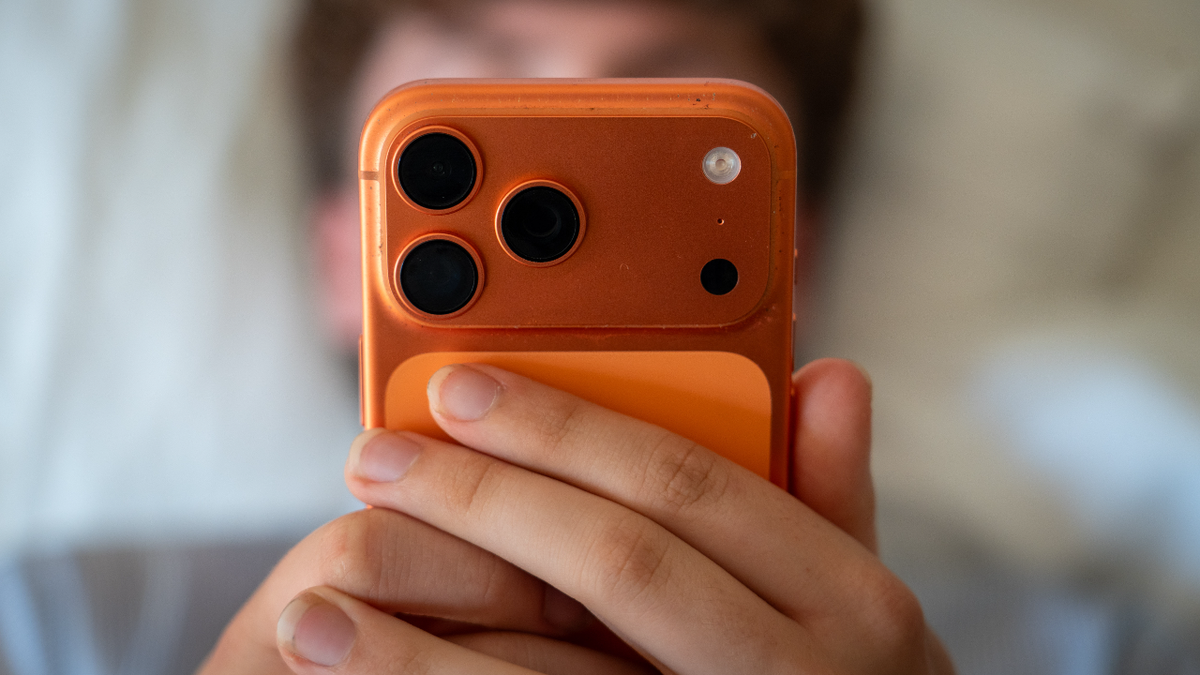
Apple’s iOS 27 adds smarter Photos tools, Safari upgrades, stronger privacy controls and the long-awaited Siri AI beta for supported iPhones. (Anna Barclay/Getty Images)
Will your iPhone get iOS 27?
The good news is that Apple kept support fairly broad. iOS 27 works with the iPhone 11 family and newer models. It also supports the second-generation iPhone SE and later. That means plenty of people can upgrade without buying a new phone. However, the biggest AI features have tougher hardware requirements. Apple Intelligence and Siri AI require an iPhone 15 Pro or iPhone 15 Pro Max, or an iPhone 16 model or later. So, an iPhone 11 can run iOS 27, but it will miss Siri AI and other Apple Intelligence features.
Keep in mind that many of the features below, including the new AI photo tools, Safari Notify Me and Call Context, also require an Apple Intelligence-compatible iPhone. Siri AI is rolling out in beta in English on supported devices. Apple says support for additional languages will follow later. Availability can also vary by region.
iOS 27 should also feel faster
Apple says iOS 27 brings performance improvements across the system. In Apple's testing, apps can launch up to 30% faster, new photos can load in the Photos app up to 70% faster and AirDrop transfers can be up to 80% faster. Apple also says iOS 27 improves transitions between Wi-Fi and cellular connections and makes Mail search more relevant. Those are Apple's own figures, so your results will vary depending on your iPhone and how you use it.
How to install iOS 27 on your iPhone
Before installing a major update, I recommend backing up your iPhone. Also, connect to Wi-Fi and make sure you have enough battery life or plug your phone into power.
Then follow these steps:
- Open Settings.
- Tap General.
- Tap Software Update.
- When iOS 27 appears, tap Update Now or Update Tonight.
- Enter your passcode if prompted.
- Agree to Apple’s terms.
- Let the update download and install.
- Your iPhone will restart when the installation finishes.
If iOS 27 does not appear immediately, check again later. Apple software releases can take some time to appear on every compatible iPhone.
1) Reframe a photo after you take it
Apple Intelligence moves deeper into the Photos app with Spatial Reframing. It lets you change the composition and perspective of a photo after you took it. Apple Intelligence can generate additional parts of the scene when your new framing exposes areas that were outside the original shot.
How to use Spatial Reframing
- Open the Photos app.
- Choose a photo.
- Tap the three-slider Edit icon at the bottom of the screen.
- Tap Tools in the bottom-right corner.
- Tap Reframe.
- Drag the photo to change the perspective or framing.
- Zoom as needed.
- Review the AI-generated result.
- Tap Done when you like it.
Because AI may create new portions of the scene, I would zoom in and inspect the result before sharing an edited photo. Generative tools can still produce odd details.

Spatial Reframing in iOS 27 lets you adjust a photo’s composition and perspective after you take it. (Apple)
2) Extend a photo beyond its original edges
Maybe you took a photo too close to your subject. The new Extend tool lets you expand beyond the original edges while Apple Intelligence generates the missing surroundings.
How to use Extend in Photos
- Open Photos and select your photo.
- Tap the three-slider Edit icon.
- Tap Tools in the bottom-right corner.
- Tap Extend.
- Pinch inward with two fingers or drag the edges of the frame.
- Tap Extend again.
- Review the generated result before saving it.
The feature will not work with every photo. Apple also says its intelligent photo-editing tools can be subject to daily usage limits.
3) Clean Up can remove bigger distractions
Apple has also upgraded Clean Up in Photos. The tool can now tackle larger unwanted objects and distractions while using AI to fill in the space left behind.
How to use Clean Up
- Open the Photos app.
- Select the photo you want to edit.
- Tap the three-slider Edit icon.
- Tap Tools in the bottom-right corner.
- Select Clean Up.
- Tap, brush or circle the object you want to remove.
- Tap Clean Up
- Review the result and tap Done when you are satisfied.
This could be especially handy for removing a person in the background or another distraction that pulls attention away from the subject.
Image Playground gets much more realistic
Apple is also giving Image Playground a major upgrade in iOS 27. You can now generate images in many more styles, including photorealistic ones. You can also start with an existing image and describe how you want Apple Intelligence to change it.
For example, you could ask it to change the setting or adjust the overall look without starting from scratch. As with Apple’s other generative image tools, usage limits may apply. I would also look closely at the results before sharing them, especially when people or detailed objects appear in the scene.
4) Safari can watch a website for you
This may end up being one of my favorite iOS 27 features because it solves a very common frustration. Safari’s new Notify Me feature can monitor a webpage for a change you care about. For example, you could ask Safari to watch for a product coming back in stock. It can also monitor a page for a price change. Instead of reopening the same page over and over, Safari can alert you when something changes.
How to use Safari Notify Me
- Open Safari.
- Visit the webpage you want to monitor.
- Tap the puzzle piece icon in the search bar.
- Tap Notify Me.
- Choose a suggested request or type what you want Safari to watch.
- Adjust how often Safari should check the page if you want.
- Tap the blue check mark.
- Tap Allow to receive notifications.
You can choose hourly, daily, weekly or monthly checks. However, Notify Me does not yet work on every website. Safari can also automatically organize open tabs by topic, which could help anyone whose browser looks like a digital junk drawer by the end of the week.
APPLE AI SECURITY UPDATE PROVES HACKERS MOVE FAST
5) Your iPhone can surface information while you are on a call
Apple Intelligence is also getting involved when you call businesses. A new feature called Call Context can surface useful information from other apps while you are on a call.
Say you call an airline about a reservation. Call Context can pull up a confirmation code from Mail rather than forcing you to leave the Phone app and search for it while someone waits on the other end.
There is no complicated workflow to learn. When you place a supported business call and Apple Intelligence identifies relevant information, it can surface that information during the call.
Apple says its system determines what could be useful based on who you are calling. It can do that without analyzing the audio from your call. That is the kind of AI feature I want to see more of, because you do not have to change your behavior to benefit from it.
6) Liquid Glass gets a much-needed adjustment
Last year, Apple introduced the transparent Liquid Glass design across iOS. Some people liked the new look. Others found certain screens harder to read. With iOS 27, Apple says it has improved contrast and readability. More importantly, you now have greater control over how transparent the interface appears. Apple added a slider that lets you move the look from ultraclear toward fully tinted.
How to adjust Liquid Glass
- Open Settings.
- Tap Appearance.
- Tap Liquid Glass.
- Drag the slider left for a clearer, more transparent look or right for a more tinted, opaque look.
- Stop when the interface looks easiest for you to read.
The changes appear in real time as you move the slider. The setting applies across iOS, including places such as Control Center, notifications and app overlays. This is a small change, but I like that Apple is giving people a choice rather than assuming one visual treatment works for everyone.

Apple’s newest iPhone software brings meaningful upgrades beyond Siri, with faster performance, smarter apps and practical everyday tools. (Kena Betancur/Bloomberg via Getty Images)
7) Put your favorite Camera controls within easy reach
If you are always digging around for the timer, exposure or another Camera setting, iOS 27 lets you keep the controls you use most right above the camera frame. Apple starts you with Flash and Live Photo there, but you can customize the row with other tools you use regularly.
How to customize your Camera controls
- Open the Camera app.
- Tap the Camera Controls button. It looks like six small dots inside a circle near the camera controls area.
- Tap Edit.
- Tap a tool you want to keep above the camera frame.
- Tap the minus button next to a tool if you want to remove it.
- Tap Done when you are finished.
- Swipe down on the tools menu to return to the Camera.
Depending on your iPhone and camera mode, available controls can include Flash, Live Photo, Timer, Exposure, Styles and Aspect. Apple also gives you a Reset to Essentials option if you want to return to the default setup.
8) Parents get more control over what kids can open
Apple has put a lot of work into parental controls in iOS 27. The new Ask to Browse feature lets a child request access to a website that has been restricted. The parent receives that request through Messages and can approve or decline it.
How to set up Ask to Browse
You first need Family Sharing set up with your child in the family group.
- Open Settings.
- Tap Family.
- Select your child.
- Tap Screen Time.
- Tap Content & Privacy Restrictions.
- Tap App Store, Media, Web & Games.
- Configure the web restrictions you want for your child.
When your child tries to visit restricted web content, they can send an Ask to Browse request for your approval. Apple has also expanded Communication Safety. It already helps protect children from nudity in supported Apple services. With iOS 27, Apple says the system can intervene when it detects gore or violent content in shared photos and videos.
9) Find My gives you more control over location sharing
Find My gets a useful privacy upgrade in iOS 27, especially if you only want someone to see your location for a limited amount of time. You can now choose a custom duration for location sharing or set an exact date and time for it to stop. That could come in handy on a trip, during an event or anytime you want temporary location sharing without having to remember to turn it off later. You can also pause location sharing until the end of the day for specific people. Apple says this can be useful when you want to keep something like a surprise party or gift-shopping trip private.
How to use the new Find My location options
- Open the Find My app.
- Tap People.
- Tap the contact you want to share your location with.
- Scroll down and tap Share My Location.
- Choose Indefinitely, Until End of Day, For One Hour or Custom.
- If you choose Custom, set the duration or exact date and time when you want sharing to end.
If you already share your location with someone, you can also pause sharing with that person until the end of the day from their location-sharing options. I like having more control here because location sharing often makes sense for a specific situation. You may want someone to know where you are during a weekend trip without giving them indefinite access afterward.

Apple’s latest iPhone update introduces 10 standout features, including website monitoring in Safari and customizable Camera controls. (Nikolas Kokovlis/NurPhoto via Getty Images)
10) You can describe a Shortcut and let AI build it
Shortcuts can be incredibly powerful, but building one manually can get complicated fast. iOS 27 makes the process much easier with Describe a Shortcut. You can tell Apple Intelligence what you want your iPhone to automate in plain English. Shortcuts then connects the actions needed to build it. For example, Apple says you could ask your iPhone to message someone with your ETA when you leave work. You could also build automations that work across supported apps.
How to create a Shortcut with a description
- Open the Shortcuts app.
- Tap the + icon.
- Tap Describe a Shortcut.
- Type what you want the Shortcut to do.
- Tap the send arrow.
- Answer any follow-up questions if prompted.
- Review the Shortcut Apple Intelligence creates.
- Describe any changes you want if you need to refine it.
This could make Shortcuts much more approachable for people who have always liked the idea of automating their iPhone but never wanted to figure out how all the individual actions fit together. Some Shortcuts that rely on Apple’s cloud-based AI models may be subject to daily usage limits.
ASKED SIRI TO CALL YOUR BANK? A SCAM COULD COST THOUSANDS
Bonus: Siri AI is here, but it is still in beta
This is the feature many iPhone owners have been waiting for, but I would treat it differently from the 10 features above. Siri AI is rolling out as a beta in English on supported devices, so expect some rough edges while Apple continues to improve it.
Siri AI can hold more natural conversations and handle follow-up questions. It can also use personal context from information on your device.
For example, you could ask Siri to find an old photo without remembering when you took it. You can also ask it to locate something buried in an email or note. Siri can take more actions inside apps, too. Apple says it can work across messages, emails, photos and other supported apps. Siri can also pull information from the web when you ask broader questions.
Why you should care
The real test will be whether Siri can save you from bouncing between apps. I have always found voice assistants most useful when they remove a few steps from something I already wanted to do. If Siri AI can reliably find a buried email or pull up a photo from years ago based on a vague description, that could change how often people use it. Because this is still a beta, I would double-check important answers or actions before relying on them.
How to try the new Siri AI app
Apple has also given Siri its own app, which makes it feel more like the AI assistants people have grown used to using.
- Open the new Siri app.
- Tap the new conversation icon.
- Type or speak what you want to ask.
- Continue with follow-up questions.
- Return to previous conversations from the main Siri screen.
You can also pin conversations you want to keep handy. Apple says you can invoke Siri AI by saying "Hey Siri," pressing the side button or swiping down from the Dynamic Island on supported iPhones.
Kurt’s key takeaways
What I like most about iOS 27 is that some of its best features solve problems you actually run into. Safari can keep an eye on a webpage so you do not have to. The new photo tools could rescue a shot you thought was unusable. Find My also gives you better control over how long someone can see your location. I am especially interested in what Apple Intelligence can do with Shortcuts. Describing an automation instead of building it action by action could finally make Shortcuts approachable for people who have always found it too complicated. Siri AI is still the feature I will be watching most closely. Apple is asking us to trust Siri with more personal context and more complicated requests, so getting the answers right will be critical. The fact that Siri AI launches as a beta tells me we should expect some bumps along the way. What I want from AI on my iPhone is pretty simple. Save me time without making me think about the technology doing the work. If iOS 27 can consistently do that, these features could become the ones you use every day without even thinking about them.
What would Siri AI have to prove before you let it handle more of your day? Let us know by writing to us at Cyberguy.com.
Sign up for my FREE CyberGuy Report
- Get my best tech tips, urgent security alerts and exclusive deals delivered straight to your inbox.
- For simple, real-world ways to spot scams early and stay protected, visit CyberGuy.com - trusted by millions who watch CyberGuy on TV daily.
- Plus, you'll get instant access to my Ultimate Scam Survival Guide free when you join.
CLICK HERE TO DOWNLOAD THE FOX NEWS APP
Copyright 2026 CyberGuy.com. All rights reserved.
